
Before you start
Sign in with an account authorised to manage billing. Use your organisation’s approved payment method.
Verification scope: The empty card form and empty Payment History were inspected. Card submission, bank authentication, charging, receipts and subscription activation were not tested.
Step 1
Open the account’s payment settings
In the AI Agent Console, choose Billing, then Payment Methods. Review any existing methods before adding another. If your account has none, the inspected screen displays No payment methods found.
Confirm that you are in the intended account and on the genuine Console domain before entering financial information. Never send full card details, CVC or bank authentication codes through an AI chat or support message.
Step 2
Open Add Payment Method
Choose Add Payment Method to reveal Add New Card. The form contains Card Number, Expiry Date, CVC and Name on Card. The example values in the screenshot are placeholders, not a real payment card.
Enter details only when you are authorised and ready to save the card. Check them before selecting Add Card. Use Cancel to leave the form without submitting.
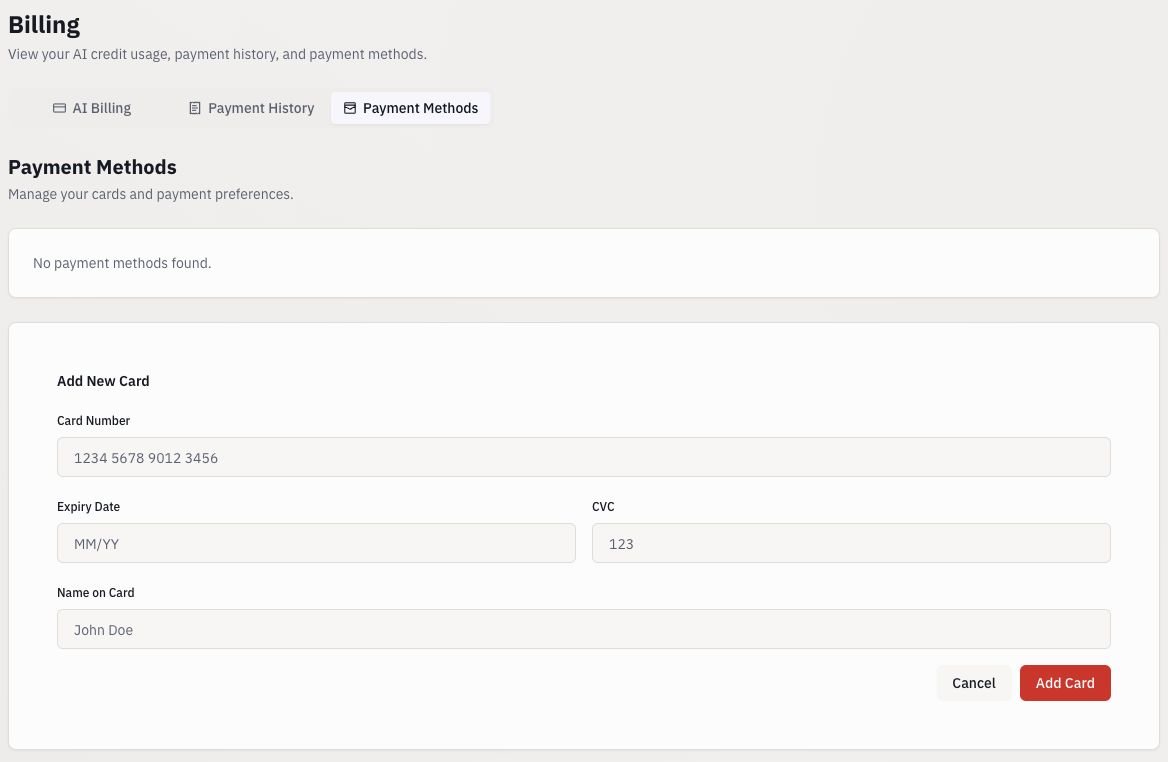
- Select Payment Methods.
- Enter card details only in the authenticated form.
- Review before choosing Add Card.
Step 3
Confirm the result without assuming a subscription
After submission, read the actual confirmation or error returned by the payment flow. Complete any bank authentication only in its legitimate payment interface. The exact confirmation screens remain to be verified for this guide.
A saved card alone is not proof that a subscription has started or an invoice has been paid. Check the account’s Billing state and the actual transaction result. If the outcome is unclear, inspect payment history before retrying to avoid accidental duplicate attempts.
Step 4
Find payment history and available invoices
Choose Payment History in Billing. The inspected table has Payment ID, Date, Amount, Status and Invoice columns. When there are no transactions, it says No payments have been recorded yet.
For an existing payment, inspect its status and use an available invoice or receipt action. Download behaviour could not be verified because the inspected account had no payment records. If you need help, provide the payment ID, date and error wording—never card details.
Completion checklist
- You distinguish saved payment details from a successful charge.
- Any payment outcome is confirmed in the actual account, not inferred from this screenshot.
Common questions
Does Add Card buy a package?
Do not assume so. The inspected control adds a payment method. A subscription requires its own confirmed commercial terms and activation result.
What should I send support if a payment fails?
Send the date, payment reference if available, and the error message with sensitive information removed. Never send a full card number, CVC or bank authentication code.