
Before you start
Gather common enquiries and have the answers checked by the relevant business owner.
Verification scope: This is an editorial workflow using the verified Paste text interface, not a separate FAQ-management feature.
Step 1
Collect questions in the customer’s language
Start with actual enquiries about product selection, quotations, service areas, rental requirements, delivery and after-sales support. Write one question for each distinct customer need. Include useful alternative wording in the same entry instead of creating conflicting copies.
Separate general guidance from order-specific answers. A general delivery FAQ can explain what information the team needs; it should not invent the arrival date of an individual order.
Step 2
Write a complete answer with its conditions
Lead with the direct answer. Then explain the conditions, the information the customer must provide and when a person needs to confirm the result. Include the product family or policy scope so the answer remains meaningful when retrieved by itself.
Give the source a title, owner and review date. Where an answer relies on a policy, reference its title and relevant section. Do not put “see above” as the only explanation; the agent may retrieve this entry without the preceding one.
Example — adapt and approve before use
Question: What should I provide for a rental quotation?
Answer: Tell us the equipment type, intended application, required dates and delivery location. Include capacity or access requirements if known. Our team must confirm suitability, availability and the final quotation.
Owner: Rental team
Review date: [approved date]
Step 3
Add the FAQ set to Knowledge Base
Open Knowledge Base → Paste text. Use a title such as Rental quotation FAQs — approved [date]. Paste the reviewed question-and-answer pairs into Content. Remove draft notes and internal-only comments before choosing Add to Knowledge Base.
After processing, locate the source and inspect Preview. Check that every question still appears with the correct answer and that formatting has not merged unrelated entries.
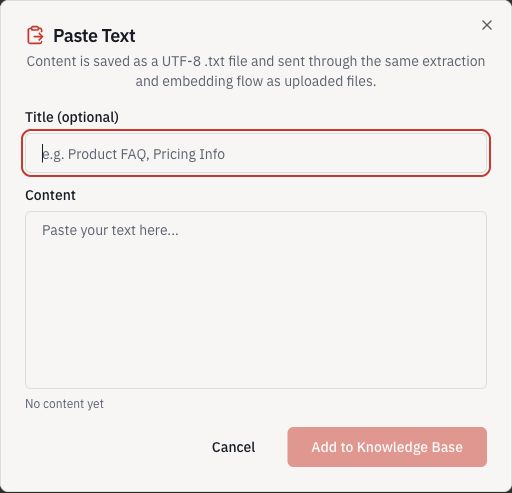
- Give the source a recognisable title.
- Paste the approved content here.
- Add to Knowledge Base when ready.
Step 4
Test variations and edge cases
Ask the exact question in Playground, then use a short customer-style variation such as “Need a rental quote—what do you need?” Check that the answer keeps the important conditions.
Ask for an exception the FAQ does not authorise, such as guaranteed availability or a special discount. If the response invents approval, tighten the answer and AI Rules, then test again. Keep a short log of the question, expected answer and observed result.
Completion checklist
- Each answer stands on its own and states relevant conditions.
- The source has a named owner and review date.
- Paraphrased questions produce consistent, grounded answers.
Common questions
Should every FAQ be a separate file?
Not necessarily. Group closely related questions under a descriptive source title, while keeping each question and answer distinct. Separate unrelated topics or policies with different owners and review cycles.