
Before you start
Select the correct agent. Prepare current, approved documents without passwords, payment details or unnecessary personal data.
Verification scope: Upload and Paste text controls were inspected. No production source was added, replaced or removed during verification. File limits and website ingestion must be checked in your own account.
Step 1
Choose the right material
Use FAQs for repeat questions; SOPs for ordered procedures; policies for rules and exceptions; and manuals or product sheets for technical facts. These describe your content, not separate category buttons in the inspected Console.
Start with a small, complete set of current sources. Assign an owner and review date to each. Resolve conflicting prices, service areas and policies before adding them; giving the agent two inconsistent instructions is not a useful way to keep history.
Step 2
Open Knowledge Base
Choose Knowledge Base in the sidebar and confirm the active agent. Review the storage indicator in your account. The values in the screenshot belong to the demonstration account and are not a promise of your package allowance.
Use Upload for a document or Paste text for approved written material. The screen also shows Learning data, but that is not a substitute for maintaining accurate source information.

- Upload an approved document.
- Use Paste text for written FAQs or SOPs.
Step 3
Upload a document or paste approved text
For Upload, choose the intended file using the file picker and follow any format or size message shown by your account. Prefer readable text documents; a scanned image may need text extraction before the information can be used reliably.
For Paste text, enter a descriptive Title and paste the complete approved Content. Review it before choosing Add to Knowledge Base. The dialogue says pasted content is saved as a UTF-8 text file and sent through extraction and embedding. That is not a guarantee that processing or retrieval has succeeded.
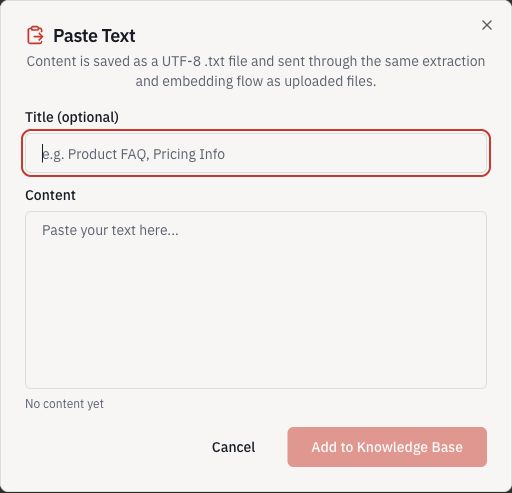
- Give the source a recognisable title.
- Paste the approved content here.
- Add to Knowledge Base when ready.
Step 4
Check the source before testing answers
Find the source using Search sources or Filter by source type. Open Preview where available and check that the important text, units and model names survived extraction. If the interface reports processing or an error, resolve that state before relying on the source.
Keep your approved master copy outside the Console. Do not remove a source until you understand whether other answers still depend on it. When replacing outdated material, re-test the affected questions and check that the earlier rule no longer appears.
Step 5
Test known answers and missing information
In Playground, ask a question whose answer is explicitly in the source, then ask it in different words. Compare the response against the original document rather than judging only whether it sounds confident.
Also ask about a fact that is missing. The agent should acknowledge the gap or request a team review, not supply an invented price, compatibility claim or delivery commitment. Add missing approved information and repeat the test.
Completion checklist
- The correct source appears under the correct agent.
- Previewed text preserves the information customers need.
- Known answers match the source and missing facts are not invented.
Common questions
Where do I add a website URL?
No Add website control was visible in the inspected account. Do not assume a URL mentioned in pasted text will be crawled. Use approved copied text or a supported file, or ask whether website ingestion is available for your account.
Does Learning data mean every conversation automatically becomes approved knowledge?
Do not assume that. The inspected learning screen does not establish an end-to-end approval or promotion workflow. Maintain approved sources and test answer quality separately.